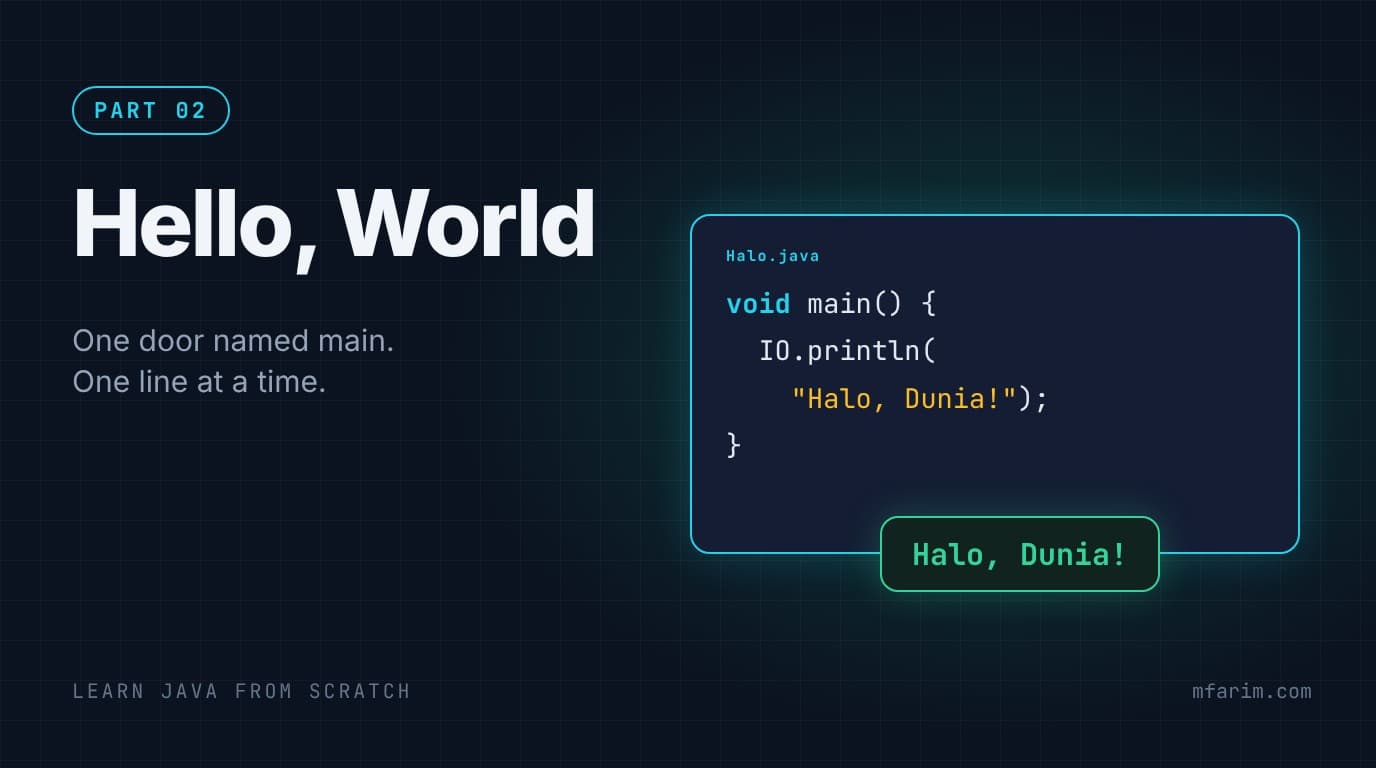
Introduction: One Line, One Enter
One line of code. One press of the Enter key. Then the computer greets you back:
Halo, Dunia!
Halo, Dunia means "Hello, World" in Indonesian. I keep the Indonesian text so the code is the same in both versions of this series.
It looks very simple. But behind that one line there is a door, an arrow that moves, and one semicolon that can make everything fail.
In this part you write your first program. This time you type too. You do not only read.
After this part, you will be able to:
- Install the JDK and check that it is ready.
- Explain the pieces of the simplest Java program.
- Compile a program, run it, and read your first error message.
Answer to the Part 1 Challenge
The question: the file Halo.class was made on a Windows laptop, and your friend uses a Mac. What must your friend do?
The answer is B: just install a JVM.
The bytecode package is exactly the same. The only missing piece is the adapter, which is the JVM for Mac. There is no need to compile again, and no need to write the code again.
If you answered B, well done!
1. Get Your Tools Ready
Install JDK 25, the toolbox we opened in Part 1. You can download a JDK for free. Two examples are Eclipse Temurin at adoptium.net and Oracle JDK at oracle.com/java.
After the installation, open a terminal. On Windows it is called Command Prompt or PowerShell. Then type:
java --version
The result looks like this:
openjdk 25.0.5.1 2026-11-17
The numbers at the end can be different. The important part is the first number: 25. It means the JVM is ready.
Now check the translator:
javac --version
javac 25.0.5.1
Both commands must work. If the terminal does not know one of them, the JDK is usually not installed correctly. Close the terminal, open it again, and try once more.
To write code, you can use any editor. Two popular ones are Visual Studio Code and IntelliJ IDEA.
2. A Program Is a House with One Door
Before you type, picture a program as a house.
This house can have many rooms. But it has only one front door. The name of that door is main.
Every time the program runs, the JVM enters through the main door. It never enters through a window or a back door.
After it enters, there is an execution arrow. The arrow moves from the top line to the bottom, one line at a time. It is like reading a recipe: step one first, then step two.
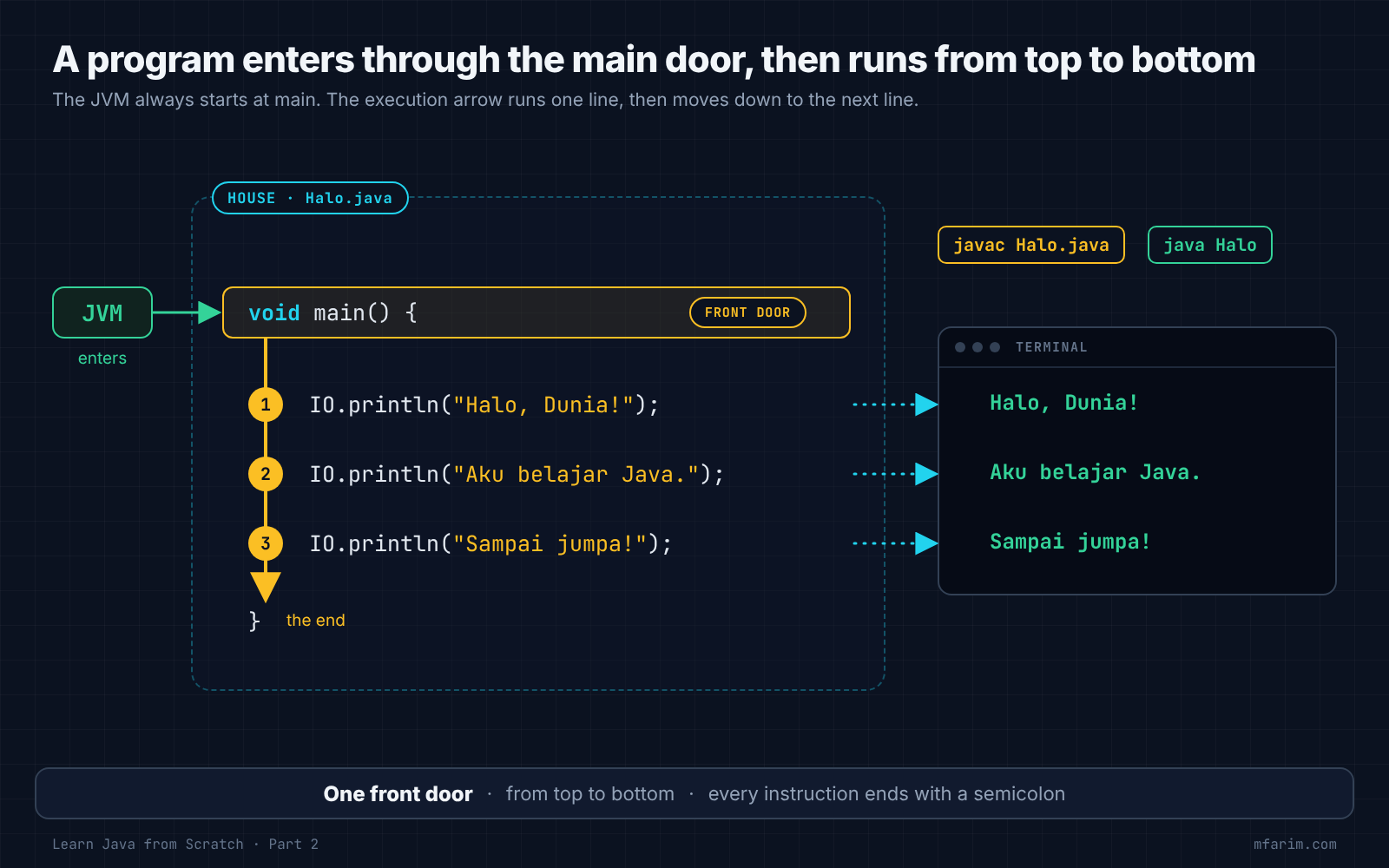
Click the diagram to open it in full size.
If there is no main door, the JVM does not know where to enter. The program cannot run.
3. Writing Halo.java
Create a new file named Halo.java. Then type this code:
void main() {
    IO.println("Halo, Dunia!");
}
Only three lines. Let us look at each piece.
| Piece | Meaning | In our picture |
|---|---|---|
void main() | The entry point of the program | The front door |
{ and } | The start and the end of main | The walls of the house |
IO.println(...) | Show some text, then move to a new line | One step in the recipe |
"Halo, Dunia!" | The text to show | What the step says |
; | The end of one instruction | The full stop at the end of a sentence |
A few small notes:
printlnis short for "print line".- Text between double quotes is called a string. A string is printed exactly as it is written.
- Every instruction between
{and}belongs tomain.
You do not need to think about the word void yet. We cover it in the part about methods.
4. Compile, Then Run
Save the file and go back to the terminal. Make sure the terminal is in the same folder as Halo.java.
Step one: compile.
javac Halo.java
No message at all? Then it worked. With javac, silence is good news. Your folder now has a new file, Halo.class.
Step two: run.
java Halo
The JVM enters through the main door. The execution arrow stops at the first line, runs println, and the result appears:
Halo, Dunia!
That is your first program. Well done.
Now add two more lines:
void main() {
    IO.println("Halo, Dunia!");
    IO.println("Aku belajar Java.");
    IO.println("Sampai jumpa!");
}
The new lines mean "I am learning Java." and "See you!". Compile and run again with the same two commands. The result:
Halo, Dunia!
Aku belajar Java.
Sampai jumpa!
Three instructions, three lines of text. The order is exactly the order of the code. The arrow moves down to the second line, then to the third. When the arrow reaches }, the program ends.
5. A Shortcut for Practice
For a program with one file, like this one, modern Java has a shortcut:
java Halo.java
Look closely: this time java gets the file name, with .java. The code is translated in memory and then runs at once. No .class file is created.
| Way | Command | Is a .class file created? |
|---|---|---|
| Two steps | javac Halo.java, then java Halo | Yes |
| Shortcut | java Halo.java | No |
The shortcut is handy for practice. But remember the two steps, because that is what really happens behind the scenes.
6. Three Beginner Traps
The three error messages below are real messages from javac. I broke the code on purpose so you can see them first.
Trap one: a missing semicolon.
Halo.java:2: error: ';' expected
    IO.println("Halo, Dunia!")
                              ^
1 error
How to read it: Halo.java:2 means the problem is in the file Halo.java, on line 2. ';' expected means javac expected a semicolon. The ^ sign points to the place. Add the semicolon, compile again, and it is fixed.
Trap two: capital letters and small letters.
Java is strict. Println with a capital P is a different word from println.
Halo.java:2: error: cannot find symbol
    IO.Println("Halo, Dunia!");
      ^
  symbol:   method Println(String)
  location: class IO
1 error
"Cannot find symbol" means javac cannot find anything named Println.
Trap three: a quote that is not closed.
Halo.java:2: error: unclosed string literal
    IO.println("Halo, Dunia!);
               ^
1 error
"Unclosed string literal" means the string is not closed. javac does not know where your text ends.
| Mistake | Message from javac | Fix |
|---|---|---|
Missing ; | ';' expected | Add ; at the end of the instruction |
Println | cannot find symbol | Write println, all small letters |
| Quote not closed | unclosed string literal | Close it with " |
One thing to remember: an error message is not a punishment. It is a hint, and it even tells you the line number.
Summary
- A Java program always starts at the
maindoor. - The execution arrow runs the instructions from top to bottom, one at a time. Every instruction ends with a semicolon.
printlnshows text and then moves to a new line. Compile withjavac, then run withjava.
Challenge
println has a sibling named print. The difference: print shows text, but it does not move to a new line.
Now look at this code:
void main() {
    IO.print("Halo, ");
    IO.println("Dunia!");
    IO.println("Siap belajar.");
}
What is the output?
- A.
Halo, Dunia!on the first line,Siap belajar.on the second line. - B. Three texts on three separate lines.
- C. An error.
Try to answer first, then run it yourself to check. I explain the answer at the start of Part 3.
Conclusion & What's Next
Your first program runs. You now know that a program enters through main, moves from top to bottom, and that javac tells you which line is wrong.
But our program can only show text that is already fixed. In Part 3, our program starts to remember things. We meet variables and data types: boxes of different sizes, from the tiny byte to the large long.
See you in Part 3. Get your coffee ready. Hot chocolate is fine too.

Written by Muhammad Fari Madyan
Senior Backend Engineer and co-founder of LampungDev. I write up what I build so others can learn from it.